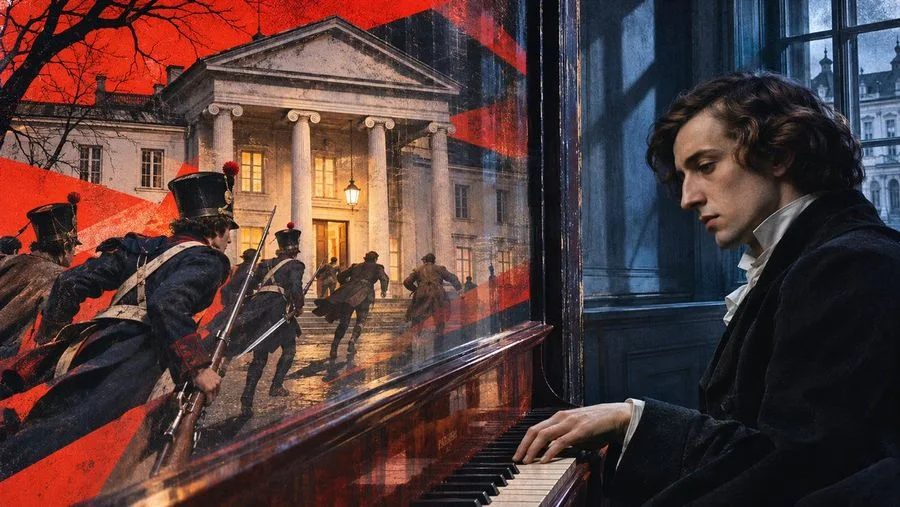

A product reveal
Open on the watch clasp. As it clicks shut, cut to a wide shot of the person fastening the strap.

 Magi AI Video
MAGI-2 generates picture and sound together. Guide a scene with images, footage or audio, cut on a line of dialogue, or change a detail in an existing shot.
Configure your model, prompt, and video output
MP3/WAV, up to 3; 2–15s each and 15s total
AI will generate matching audio for the video
Reference online information during generation
Try one of these prompts in Magi AI, then change a single detail and compare the shots.
Open on the watch clasp. As it clicks shut, cut to a wide shot of the person fastening the strap.
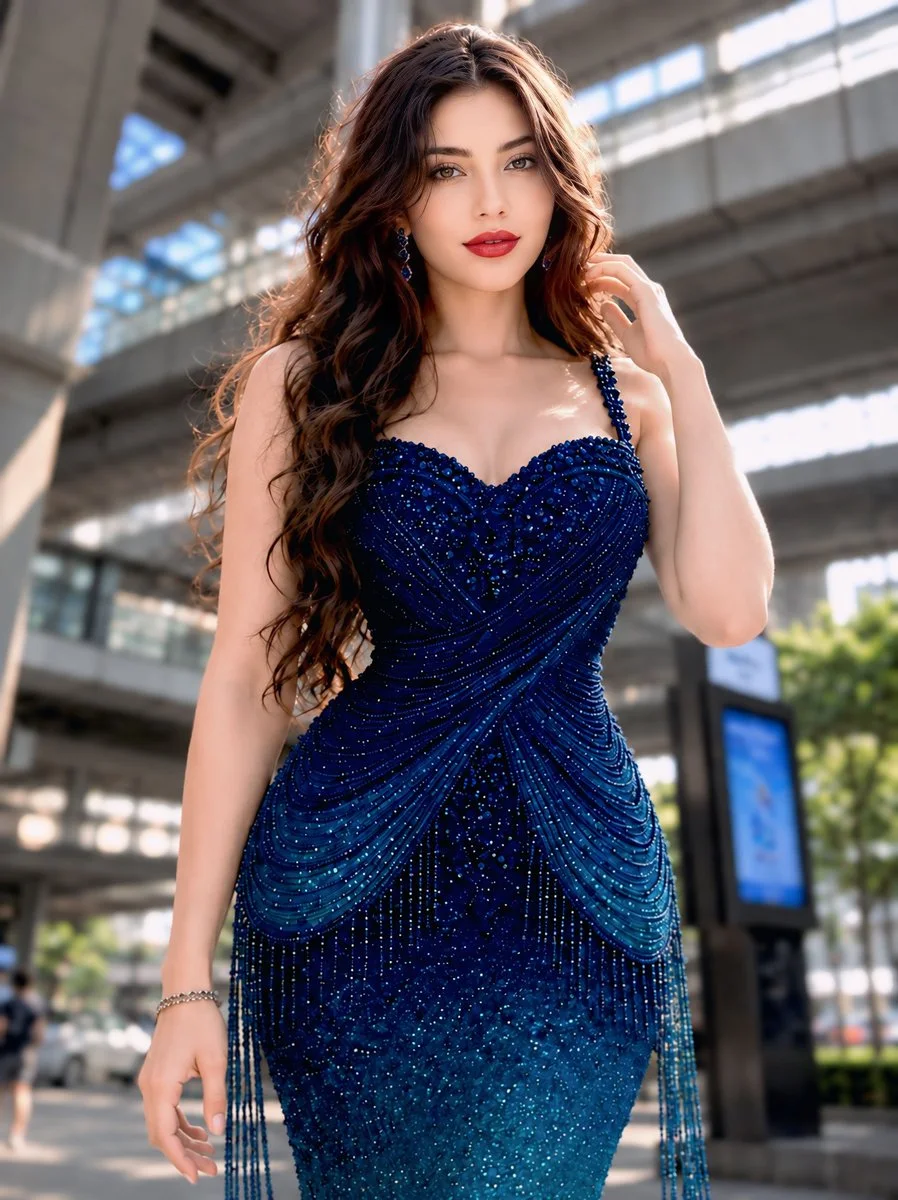
Hold on the passenger as she asks when the train leaves. Cut to the clock while the platform announcement continues.

Use an existing street scene. Ask for a red raincoat in place of the grey jacket, then check the coat as the actor turns.
Use a reference to set the look, then describe what changes on screen and what the audience hears.

Give each Magi AI reference a job. Use a photo for the coat, a clip for the walk and an audio sample for the rhythm.
Describe the opening shot and when the view should change. Try a close-up at four seconds as the actor puts down a key.
Write the line of dialogue and the sounds around it. Specify a metallic click when the key hits the table.
Check the credit estimate in Magi AI before trying a second version with a different duration or resolution.
Buy a one-time credit pack for occasional projects, or choose a subscription for ongoing work. Credit packs do not renew automatically, so you can pay for another pack when you need it.
Compare Plans and Credit PacksThe editor displays the credits required for your selected model and output settings. Check the cost before submitting a prompt or trying another version, so you can decide whether it fits your remaining balance.
Check Generation CostsCredits deducted for a generation task are returned automatically once the task is confirmed as failed. A completed result still uses credits if you decide to generate another version. Contact support if a failed task's refund remains unresolved.
Get Help With a Failed TaskA reference can guide a new scene. To revise footage, name the object, describe the change and specify what should stay in frame.
Use a reference to set the look, then describe what changes on screen and what the audience hears.
Choose referencesTell Magi AI which detail to change and which to keep. For a wardrobe edit, ask for a red raincoat while keeping the street, the framing and the actor’s walk.
Describe an editNeed a larger visual for a product page or layout? Upload your file and choose a 2K, 4K, or 8K target. Export as JPEG, PNG, or WebP and check the enlarged details before use.
Upscale a PhotoNeed a cutout instead of a new scene? Isolate the subject from its background and download a transparent PNG for product listings, presentations, or a new design.
Remove a BackgroundHave a reference but do not know how to describe it? Convert it into a text prompt you can edit for your next generation. It describes visible content; it does not recover the original prompt.
Extract a PromptUpload a still composition and describe what should move. Check the duration, resolution and credit estimate for your chosen model.
Animate a PhotoReference limits, clip length, sound and downloads.
A native model request accepts up to 20 references across three types, with limits of 10 images, 5 video clips and 5 audio clips.
MAGI-2 supports up to 30 seconds at 1080p and 25 frames per second. It offers six aspect ratios.
The model generates dialogue with lip movement, ambient sound, sound effects and music alongside the picture.
When the task completes, open the preview and use the download control. Play the saved file to check the picture and sound before including it in your final edit.
Refund requests are eligible within 7 days of purchase when less than 50 percent of the credits have been used. Contact support with the order details. A failed generation credit return is separate from a purchase refund.
Choose the perfect plan for your creative needs.
Explore Magi AI Video with starter credits. Check the cost of your chosen video settings before generating.
Great for exploring!
For serious creators who need professional features
✓ Cancel anytime — no questions asked
For studios and teams creating at scale
✓ Cancel anytime — no questions asked
With a reference video, credits are charged on output duration plus the total reference-video duration.
Start your Magi AI prompt with the first line the audience hears, then decide what belongs on screen at that moment.
Have feedback, questions, or suggestions about Magi AI Video? We would love to hear from you.